Units
The "Units" feature in our Warehouse Management System (WMS) allows you to define different units for products. This helps categorize products in various units, making counting, ordering, and stocking inventory more efficient.
For example:
- Per piece: A single unit is added to the inventory.
- Per package: If one package contains 12 pieces, adding a package will automatically increase the inventory by 12.
In the Afosto system, "pieces" is the standard unit for inventory management. This ensures consistency in inventory management, regardless of the unit in which products are added. When you add products in different units, such as crates or boxes, the system automatically converts them and displays the total inventory in individual pieces.
For example, if you add 2 crates, each containing 24 pieces, and then 20 individual pieces, the system will record the total inventory as 68 pieces instead of "2 crates and 20 pieces."
Benefits of Using Units:
- Quick and efficient inventory addition: Add inventory in bulk (e.g., packages) instead of updating piece by piece manually.
- Ordering in different units from your supplier: Products can be ordered in different units than they are sold. This is especially useful for supplier ordering systems. The system automatically converts these bulk units to the standard unit.
Add Product Units
Click on the "Units" tab on the product detail page.

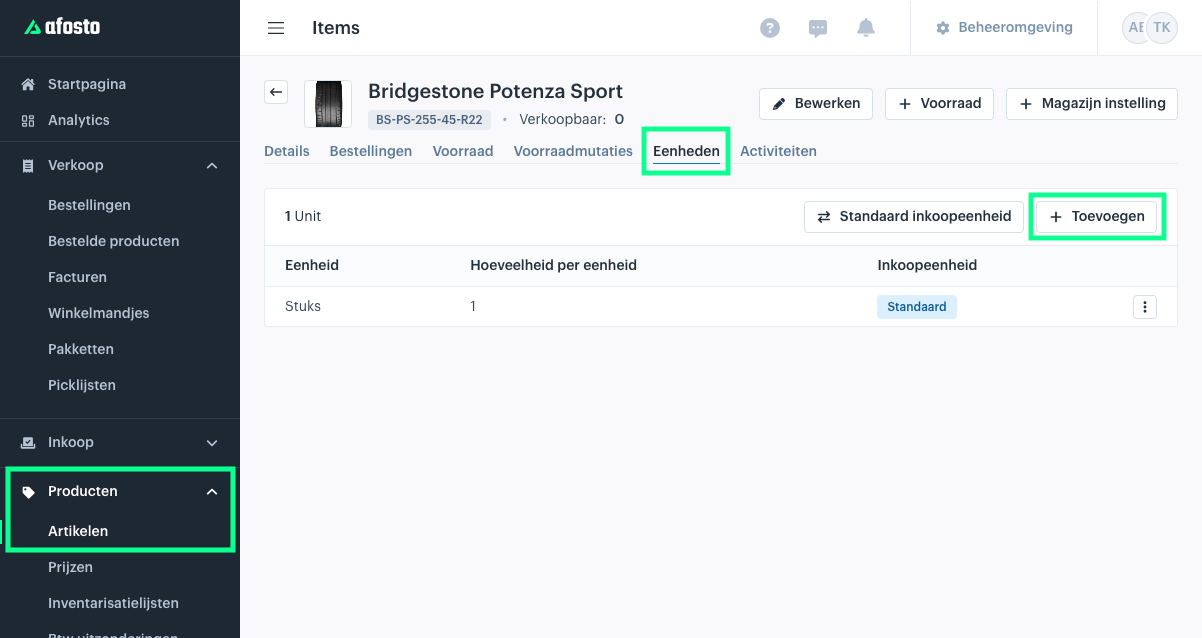
Click the "Add" button. The window below will appear.
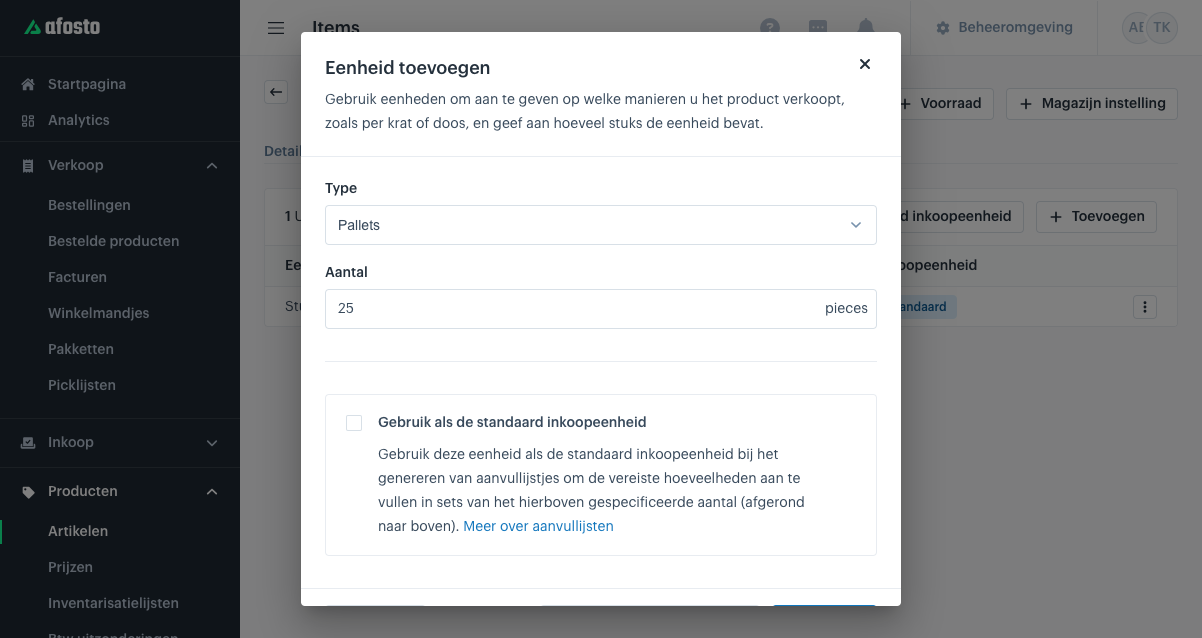
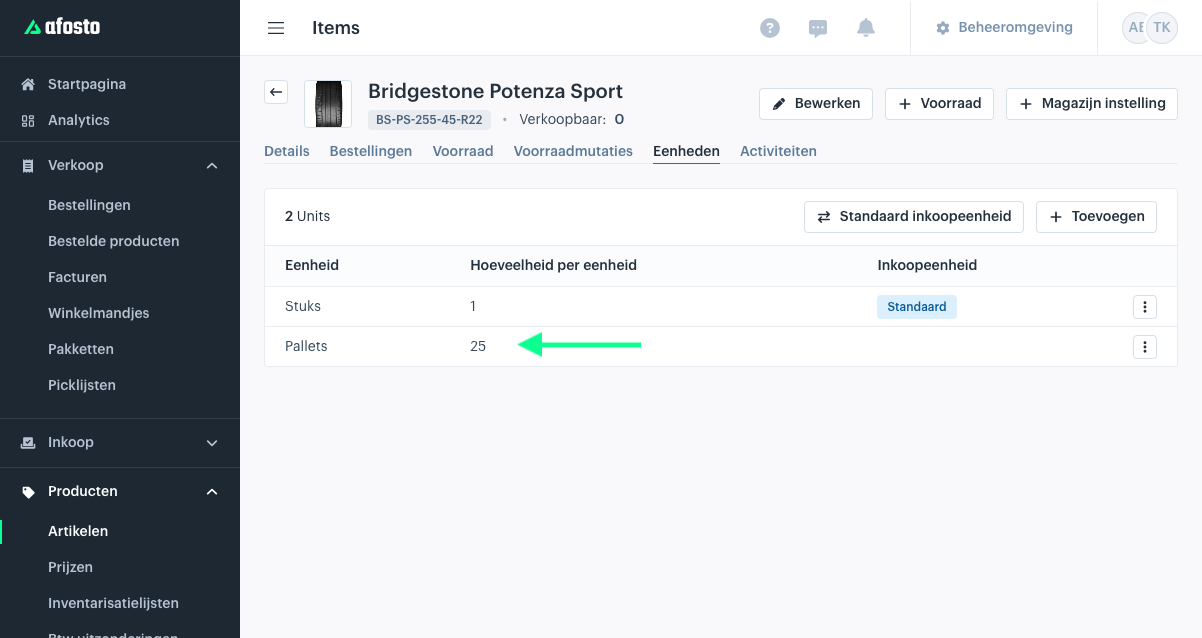
Under Type, select the unit. So in the example above, 'Pallets'. Below that, enter the number of pieces per pallet. If you then add 1 pallet to your inventory, 25 pieces will be added. Click 'Add', and the unit you just added will appear in the table.
Default Purchase Unit
The default purchase unit is the unit that appears on the replenishment lists. For example, if you sell per bottle but purchase per crate, the required number of pieces will be converted to the purchase unit. If you want to replenish 48 pieces, this will be converted on the replenishment list to 2 crates instead of 48 individual pieces.
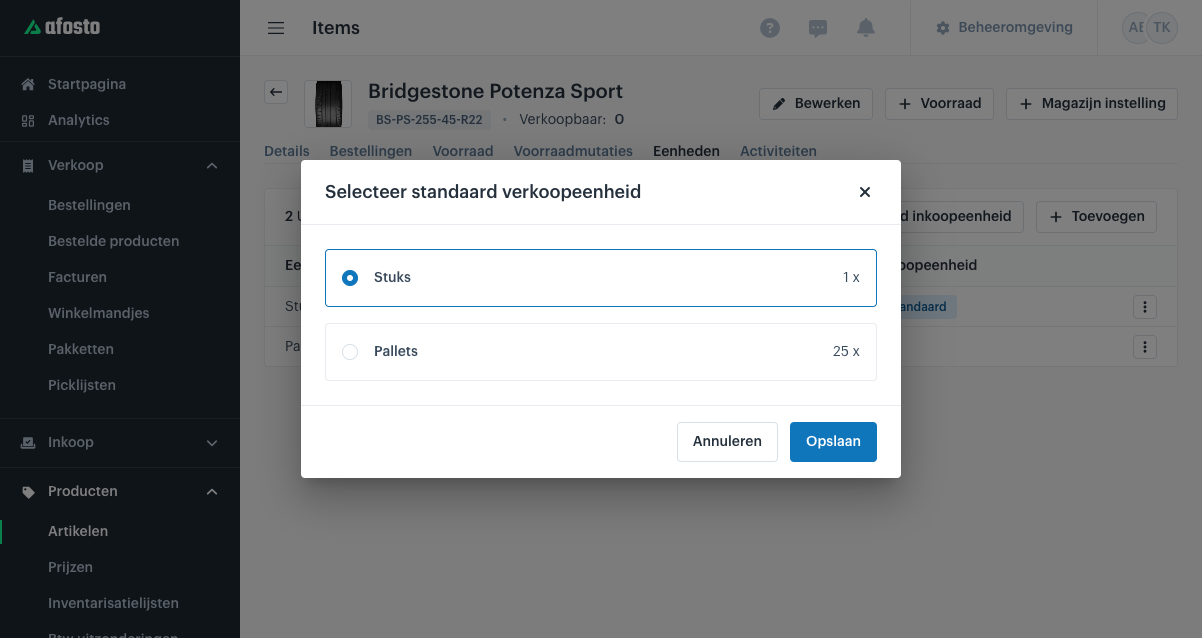
To change this, click the 'Default Purchase Unit' button.Vervolgens verschijnt onderstaand venster. In dit venster zie je alle eenheden van het product waarvan je 1 kan selecteren als standaard inkoopeenheid.